Migration
One-Click Migration from MS365
Painless and automated full migration to OneOffice
1. Introduction
One too Many of our customers tell us the reason they were sticking with their previous platform (often MS 365) was due to the lock-in effect. They feared migration woes and challenges (and even costs) so they kept postponing it.
2. MS-365 Migration Application
The way it works is really easy
- You authorize the OneOffice Migrator on your tenant (by going here). All this does, is give permission to the Migrator App to READ your data. We cannot write or change anything in your MS365 instance.
For avoidance of doubt, let’s be clear. The Migrator app only READS from your MS 365 tenant. That means you can run it and test it without any fear of losing data.
- You may need to log in first with your administrator credentials, then the authorization popup will open and ask your permission.
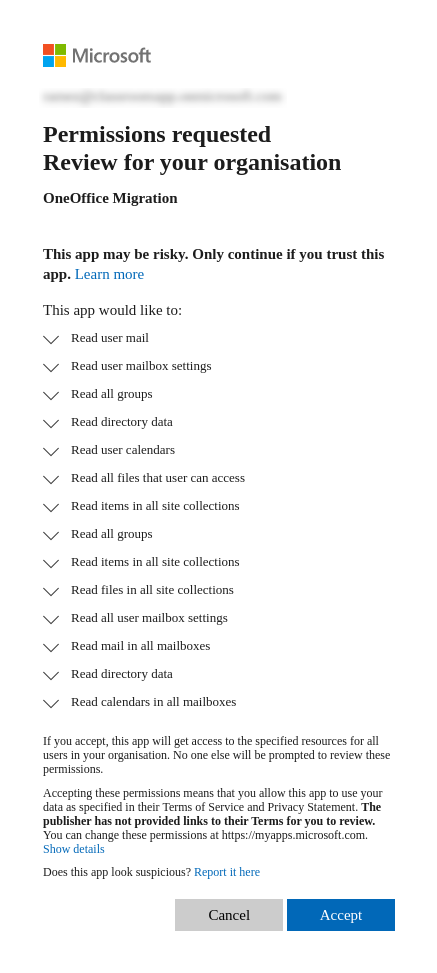
- Once you authorize, you will be directed back to our website to complete a form.
This form is important, it tells us which company is linked to that MS 365 instance. Please complete it.
But don’t worry, nothing happens yet. You have only authorized the migrator.
- We have a conversation to ensure you are ok and ready for us to start pulling your data. Only when you say you are ok, do we initiate the process.
3. User Access
Once we are done, we will send over a spreadsheet with users and their new passwords (we can’t reuse the old passwords as they are encrypted)
We can also send a welcome email to your users with their new access credentials. That’s part of the conversation we would have in the last step.
And .. that’s it. You are done.
Have questions?
Still have questions? Talk to support.
All content copyright OneOffice / ZeGenie Inc. -- Unauthorized use is prohibited.